That Weird AI Look: How to Enhance Photos Without Making People Look Plastic
AI face enhancement can make people look like mannequins. After lots of trial and error, I found settings and techniques that preserve natural skin texture and facial character.
I showed my sister an AI-enhanced photo of our late grandfather, proud of how sharp and detailed it looked. She squinted at it and said, “Why does he look like a wax figure?”
She was right. The AI had smoothed away every pore, every laugh line, every bit of texture that made him look like a real person. The photo was technically sharper, but it had lost its soul. That sent me down a path of figuring out how to enhance photos without turning people into mannequins.
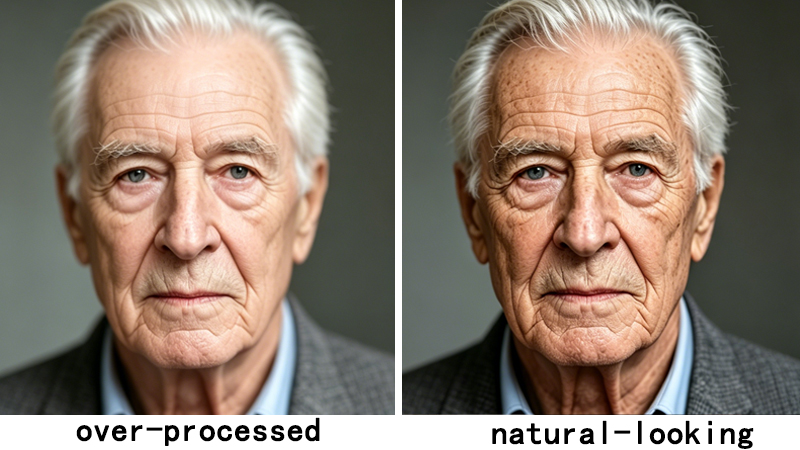
What causes the mannequin look
It is not one thing — it is usually a combination of three problems happening at once. First, the AI removes all noise and grain, which sounds good but also removes skin texture. Second, it hallucinates details that were not in the original, especially in eyes and teeth, which makes them look too perfect. Third, it applies uniform smoothing across the entire face, so you lose the natural variation between different areas — cheeks should have different texture than foreheads.
Start conservative, not aggressive
My default now is the lowest enhancement setting that makes a visible improvement. For most photos, 2x face enhancement does more than enough. I used to jump straight to 4x, thinking more must be better. It isn't. The difference between 2x and 4x face enhancement is often the difference between “oh, that is clearer” and “oh, that looks processed.”
You can always run it again at a higher setting if the first pass wasn't enough. You can't undo over-processing.
Use dedicated face restoration, not general upscaling
General upscalers treat faces the same way they treat grass, sky, and buildings — they sharpen everything uniformly. Dedicated face restoration models like GFPGAN understand facial anatomy. They know where eyes go, how noses are shaped, and (crucially) that real skin has texture. For any photo where faces are the main subject, always use a face-specific model rather than relying on the general upscaler.
Some grain is good
I spent years thinking photo grain was the enemy. It is not. A little grain actually makes photos feel more authentic, especially vintage ones. When you completely remove all grain from a 1970s photo, it looks sterile and wrong — like a period movie shot on digital cameras. I now aim to reduce excessive noise while preserving enough grain to maintain the original character.
Compare before and after. Actually look at them side by side.
This seems obvious, but I used to just look at the result and think “yeah, that looks good” without comparing it to the original. The comparison slider is there for a reason. When you flip back and forth, problems become immediately obvious: the skin is too smooth, the eyes are weirdly sharp, the hair has lost its natural flow. If the enhanced version looks dramatically different from the original, something has gone wrong.
The goal is an enhanced photo where people think “nice picture” — not “what AI tool did you use?” If the AI is invisible, you did it right.
Try natural-looking face enhancement. ClarifyPix Face Restoration uses GFPGAN with identity preservation, so your family still looks like your family.