Restoring Old Damaged Photos: What AI Can (and Can't) Fix in 2026
I tested AI restoration on 50 damaged family photos. Here is what worked, what failed, and how to get results that look natural — not like a robot fixed them.
AI photo restoration can fix scratches, fading, stains, and mild water damage on old photos with remarkable accuracy. It cannot rebuild faces that are completely missing, restore details in areas where the photo paper itself is gone, or make a blurry face sharp enough to identify someone you have never seen before. For best results, restore damage first, then upscale last.
My grandparents' wedding photo sat in a frame for 60 years. By the time I got it, there was a scratch across my grandfather's face, the corners were faded to near-white, and there was a brown stain from what I hope was coffee. I figured AI could fix it in seconds. That was optimistic.
After running 50 damaged family photos through various AI restoration tools over the past few months, I have a much clearer picture of what works, what doesn't, and how to get results that actually look like the original photo — just cleaned up.
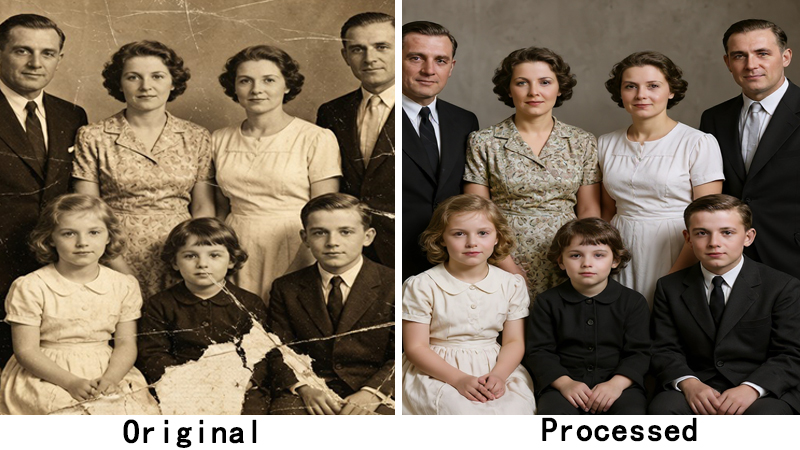
What AI restoration can and cannot fix
| Damage Type | AI Can Fix? | Notes |
|---|---|---|
| Scratches & dust | Yes, near-perfect | AI identifies linear anomalies and fills from surrounding pixels |
| Mild fading & color shift | Yes, very good | AI rebalances color channels; sometimes slightly overcorrects |
| Water stains & spotting | Mostly, with limits | Works best on moderate stains; severe damage leaves subtle texture differences |
| Torn or missing face areas | No, unreliable | AI guesses when image data is gone — results look unnatural |
| Mold through photo paper | No, irreversible | Physical paper damage means no image data to reconstruct |
I had a photo with a deep scratch straight across my aunt's face from the 70s, and the AI filled it in so cleanly I couldn't tell where the scratch had been. But another photo where my great-uncle's face was partially ripped away came out badly — the AI gave him someone else's nose.
The scratch repair setting: when to use it
Most restoration tools have a scratch repair toggle. I turn it on for photos with visible physical damage — scratches, scuffs, crease lines. For photos that are just faded or noisy but structurally intact, I leave it off. The scratch repair algorithm can sometimes over-smooth fine details like hair texture or fabric patterns if there aren't actual scratches to fix.
My actual workflow (that works)
After a lot of trial and error, here is the order I follow now:
- Scan at 600-1200 DPI. More pixels = more for the AI to work with.
- Do AI restoration first. Remove scratches, fix fading, clean up general damage.
- Check the faces. If they're still blurry after restoration, run a separate face restoration pass. I use ClarifyPix's face restore for this.
- Upscale last. Don't upscale before restoring — you're just giving the restoration AI more work. Restore at native resolution, then upscale the cleaned-up result.
- Colorize if you want. For black and white photos, I do colorization after restoration and before upscaling.
Don't expect perfection
The biggest mistake I made was expecting AI to produce museum-quality restorations. It doesn't. What it does is take a damaged photo and make it good enough to share with family, print in a photo book, or post online without people asking “what happened to that picture?” For heirloom restorations — the wedding photo, the military portrait — I still go to a professional. For the other 95% of family photos, AI does the job.
Try restoring your old photos. ClarifyPix old photo restoration costs just $1$1.99 for a 7-day trial with scratch repair and face restoration built in.